Workflows that save a result
Turn a short form into a real Task List. The built-in template does this without an AI model, API key or external automation service.
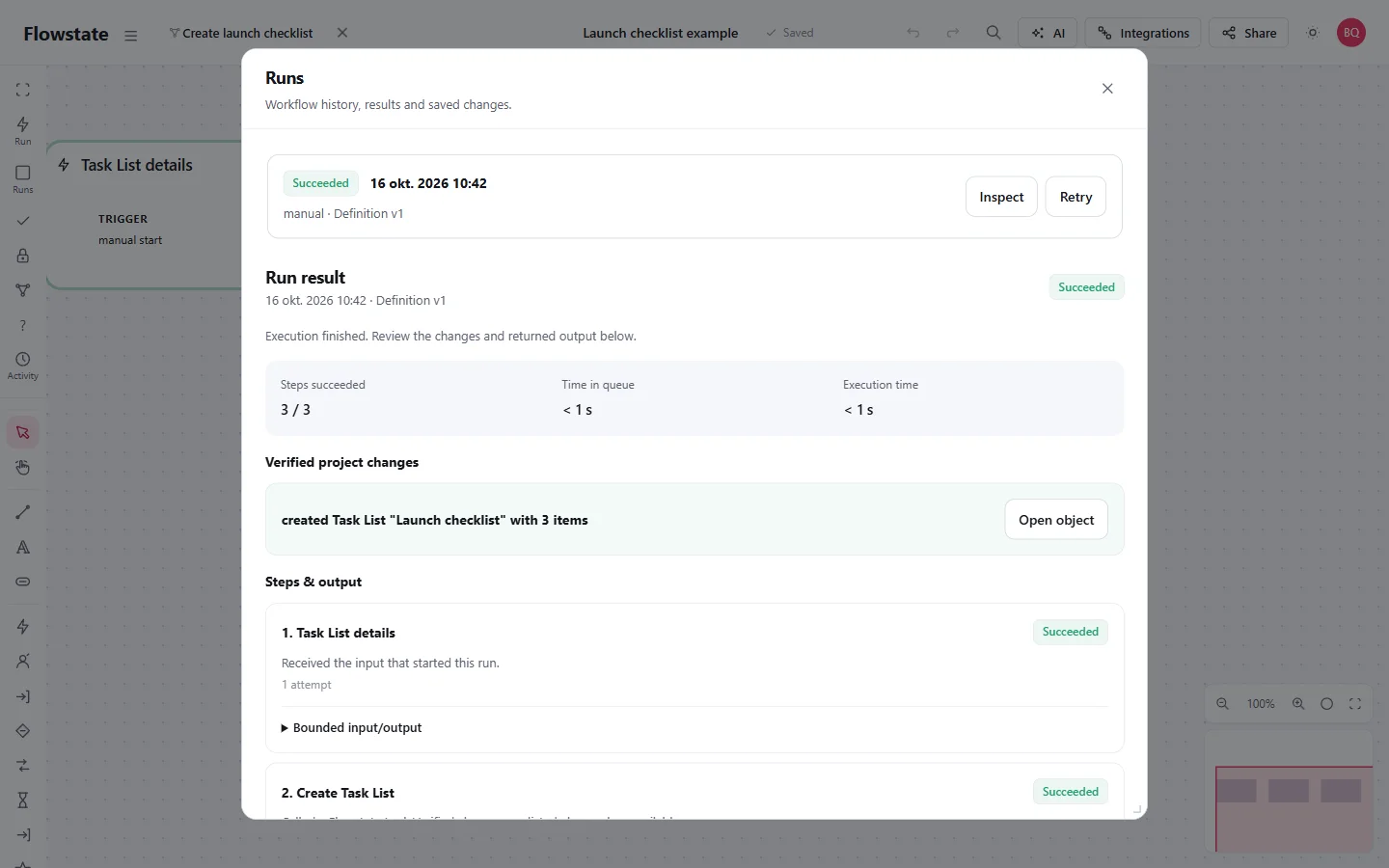
Example: create a launch checklist
- On a regular Board, choose Create Workflow and select Create a Task List.
- Open its Frame. Review and validate the definition; the Project owner approves the requested authority.
- Choose Run. Enter Launch checklist as the title.
- Enter one task per line: Test checkout, Check links, Publish the site.
- Run it, then open Runs to inspect the result.
The Action saves an ordinary Task List on the Board where you created the Workflow. Open object takes you to it. You can edit and check off its items like any other list.
Know where the result lives
Runs holds execution status, step data and verified changes. An Output step only returns data there. An Action such as Create a Task List or Save as Text creates lasting Project content.
Terminal run history is kept for 90 days. Keep important results in saved Project objects.
Add a review before saving
Use Review and save a report when the owner should check the content first. Its review Wait pauses the run. Approve continues to the save; Reject stops later steps. It does not undo changes already made before the review.
Collect open tasks is another starting point: it reads up to 25 matching objects and saves a report. Inspect any limit notices before treating the result as a complete inventory.
Run on an event or schedule
Enabled, owner-approved Workflows can start from schedules, signed webhooks or human Project changes. Server work normally advances through maintenance checks every five minutes.
Local AI steps need an active compatible owner browser. An external Agent step needs a connected agent service. Neither is needed for the Task List example above.
Start a Project, read the Workflow guide, or check Workflow questions.